Display Tuner for macOS
Take control of your Mac’s display refresh rate and resolution – right from the Menu Bar.
Always know what your display is doing. Switch refresh rates and resolutions in a couple of clicks without opening System Settings.
Overview
Always know what your display is doing
Display Tuner is a lightweight Menu Bar app that shows your current refresh rate and resolution at a glance and lets you switch between modes in a couple of clicks. Perfect for external monitors, gaming, and everyday work.
Key benefits
Designed for quick, daily switches
Everything you need to pick the right refresh rate or resolution in seconds.
See current refresh rate and resolution directly in the Menu Bar.
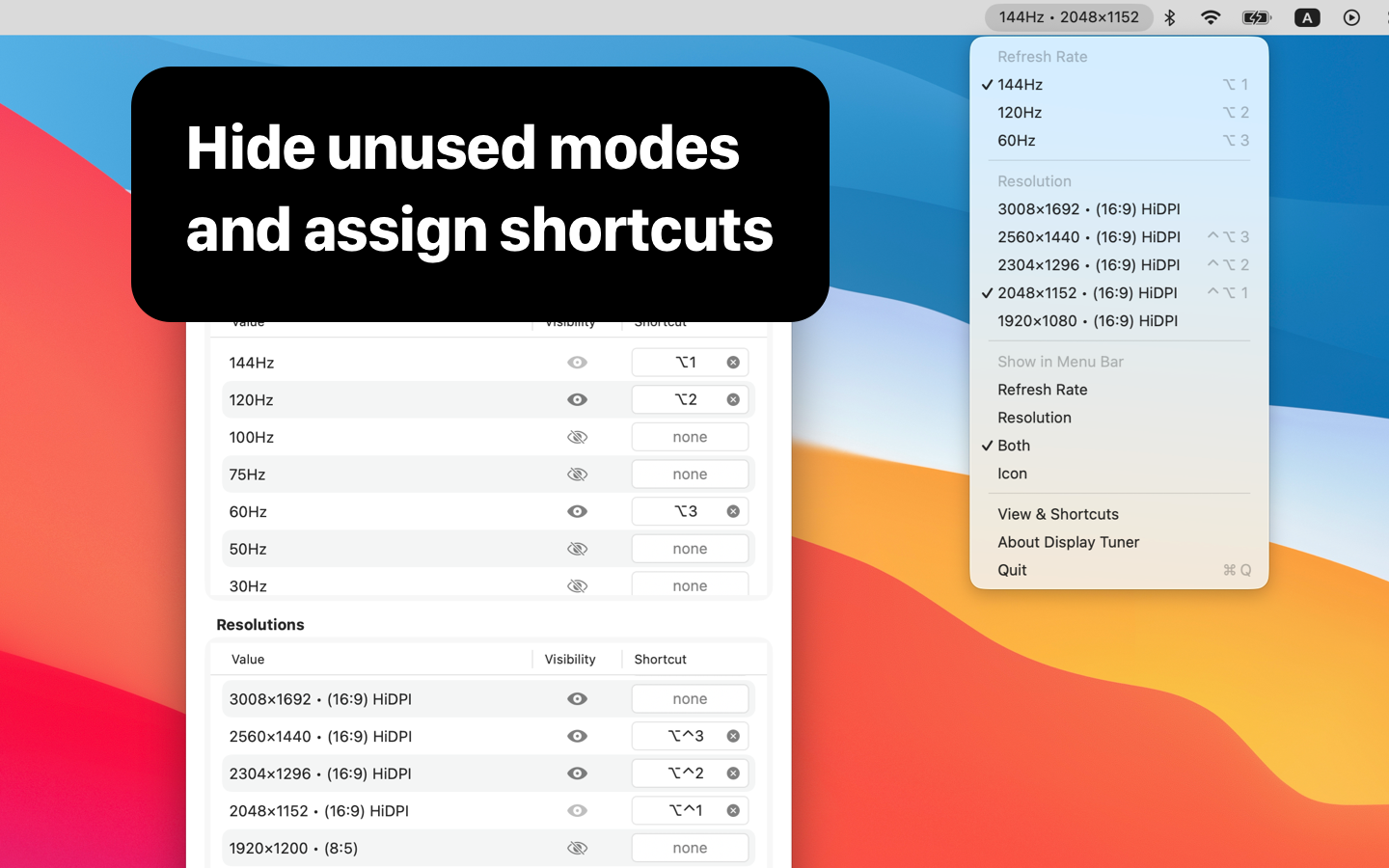
Change modes without opening System Settings. Add hotkeys.
Hide modes you never use and keep daily essentials within reach.
Automatically refreshes when displays are plugged in or unplugged.
How it works
Switch modes without digging through menus
Install from the Mac App Store, click the Menu Bar icon, and pick the refresh rate or resolution you need.
- Install Display Tuner from the Mac App Store.
- Click the Display Tuner icon in the Menu Bar.
- Pick a mode from the Refresh Rate or Resolution sections.
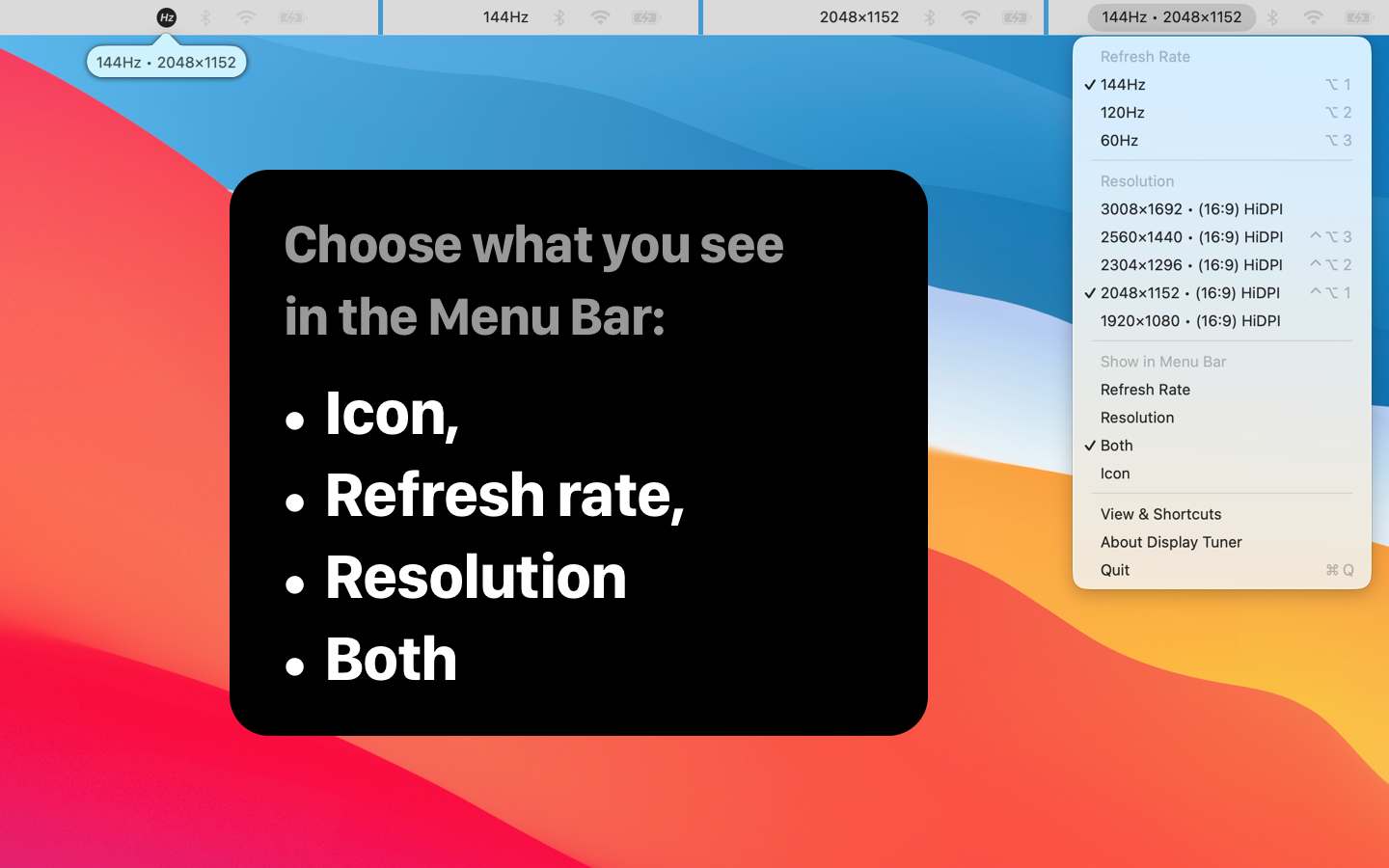
- Choose whether the Menu Bar shows Refresh rate, Resolution, Both, or Icon.
Screenshots
See Display Tuner in action
Quick look at the Menu Bar experience and the main controls for refresh rates and resolutions.
Features
Features in detail
Built for people who switch display modes often and expect reliable, safe changes every time.
- Show only the refresh rate (e.g. 144Hz), only the resolution (e.g. 2560x1440), or both, and an additional Icon option with information on hover.
- Switching between modes updates the Menu Bar title instantly.
- Shows supported refresh rates for your current main display.
- Sorted from highest to lowest so your preferred modes stay on top.
- Includes fixed refresh rates and, when available, a separate Variable (VRR) option.
- Lists practical desktop resolutions for your display.
- Shows aspect ratio and HiDPI flag (for example: 2048×1152 • 16:9 • HiDPI).
- Sorted from highest to lowest resolution.
- Hover over a mode to reveal the eye-slash icon.
- Hide rarely used modes and bring them back if it needed.
- Hidden modes are remembered between launches for a tidy daily list.
- Custom keyboard shortcuts for any refresh rate or resolution.
- Assign a key combo to any item in your lists and jump to it instantly without opening the menu.
- Automatically refreshes when you plug in or unplug an external display.
- Updates lists when you close or open a MacBook lid.
- Keeps the Menu Bar title accurate for the new main display.
Who it is for
Made for people who change modes often
- Gamers who need fast switches to high refresh rates and back.
- Developers and creatives testing apps and designs at multiple resolutions and HiDPI modes.
- External monitor users jumping between native and scaled resolutions without System Settings.
- Power users who change display modes more than once a week.
Requirements
Works on modern macOS
- macOS 13 or later (recommended).
- Works with built-in and external displays that expose multiple modes via macOS.
Support
Need help?
If you have questions, suggestions, or found a bug, we’d love to hear from you. Display Tuner does not collect personal data. All changes are applied locally on your Mac using standard macOS APIs.
Email: hello@benderbureau.com
Support docs: Visit the Display Tuner support page